

Add your team
What you'll learn
- How to create accounts for the people on your team
- How to reset a password or remove someone's access
- Requiring two-step verification for the team, and resetting it for anyone locked out
If more than one person is going to use Parlario at your business, you can create accounts for each of them, up to your plan's seat limit.
Go to Settings → Team
At the top you'll see how many seats you're using out of your plan's total (for example, "2 of 5 seats") — up to 2 on Essential, 5 on Business, 10 on Advanced.
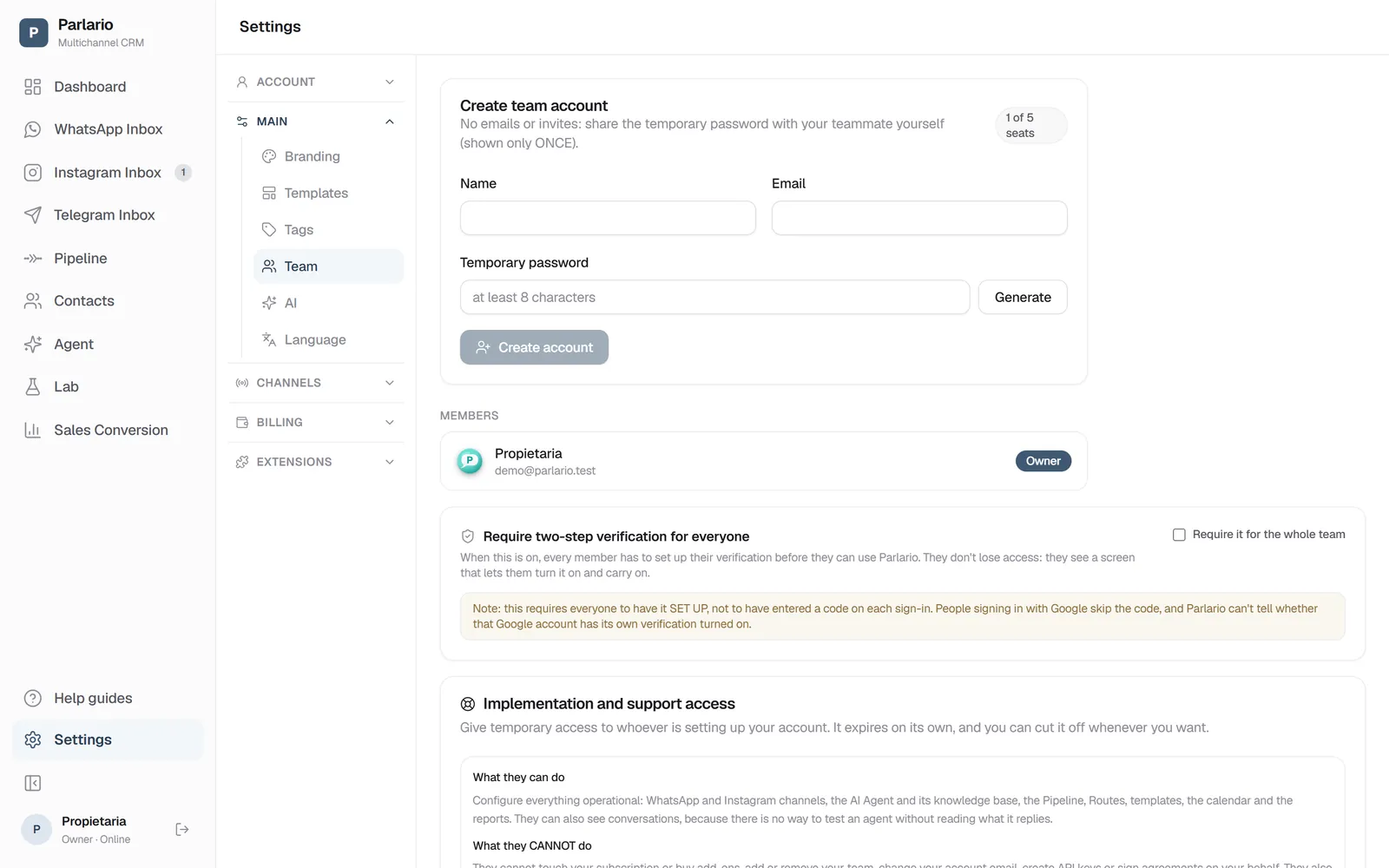
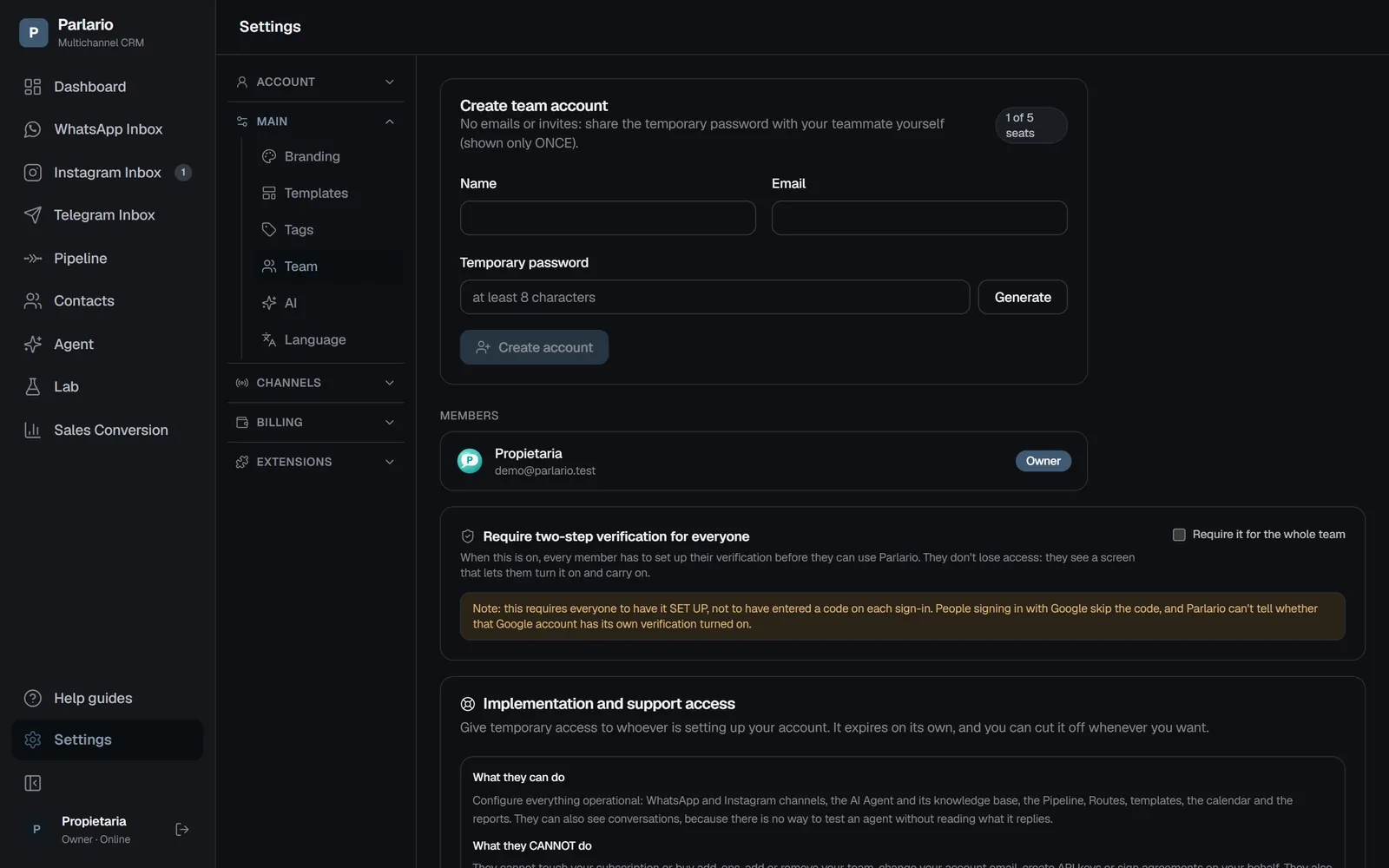
Settings → Team: create the account and generate a temporary password Fill in their details
The person's name and email.
Generate a temporary password
Click "Generate" (at least 8 characters).
Create the account
Click "Create account."
Share the password
It's shown only once — copy it and share it yourself with your teammate however you prefer (no automatic email is sent).
Two-step verification for the whole team
Everyone can turn on their own two-step verification from Settings → Login and security. As the owner, you can also require it for the whole team and help out anyone who gets locked out.
Requiring it for everyone
On the same Team screen, turn on “Require two-step verification for everyone”. From then on, any member without it sees a screen that lets them turn it on and carry on working.
It's a wall, not a lockout: nobody loses access to their account, they're simply asked for something before continuing, and it's cleared in a minute. That's also why there's no need to warn people days in advance.
What it requires, exactly
It requires each person to have it set up, not to have entered a code on every sign-in. People who use “Sign in with Google” never see the code — Google has already verified them — and Parlario has no way of knowing whether that Google account has its own verification turned on.
We say so because turning this on believing it seals the team, when half of them sign in with Google, is worse than knowing exactly what you're buying.
Seeing who has it, and resetting it
In the member list, anyone with verification on carries a green 2FA badge next to their role.
If someone loses their phone and runs out of backup codes, click the shield icon on their row to reset their verification. They'll sign in with just their password until they set it up again — nothing is transferred to anyone, and they're never left half configured.
If the person locked out is you, the owner, nobody inside your account can help. Need a hand? Create an account on our support portal at support.parlario.co and submit a ticket. Registration is easy, and you'll only need to do it once!
Limit each person to their numbers
If you connected more than one WhatsApp number or Instagram account, an "Access by account" card appears on this same screen. Each member has a row with your numbers: tap the ones that belong to them and it saves instantly.
- A restricted member sees only the Inbox, Contacts, Pipeline and Dashboard for their numbers. Everyone else's conversations don't exist for them.
- They don't see the Monthly Active Contacts counter, which is billed for the whole account.
- With none ticked, they see all — which is the default.
- The owner and implementation access always see every number.
The full details are in Several numbers and accounts.
Change the owner
The account has a single owner: the person who manages the team, the subscription and the settings. To hand that role to someone else, go to Settings → Team → “Account owner” → “Change owner”:
- Choose someone on the team or someone new (name and email).
- Check “Delete my account when they accept” if you're leaving; otherwise you stay on the team as a member.
- They get an email with a link to create their password. Only when they create it do they become the owner — until then you still are, and nothing changes. The link expires in 7 days; you can resend it or cancel the change.
The Stripe subscription doesn't change: it keeps billing as before. If it's ever canceled or the payment lapses, the new owner subscribes again from the app with their card, like any account. Someone new takes up a seat on the team. If the owner can't sign in anymore, write to support@parlario.co: we can assign a new owner the same way.
Recap
- Each member is marked Owner or Member
- Next to each member (except the owner) there are two actions: reset password and remove (frees the seat, irreversible)
- If you hit your plan's seat limit, the form hides — upgrade your plan or free up a seat to add more people
To unmark the lesson, select the button again.
Questions? Visit our support portal: support.parlario.co