

Contacts
What you'll learn
- What you can do from the Contacts list
- How to export your base to CSV, and what it includes
Search and edit
Search by name or phone number. Edit a contact's name or add internal notes.
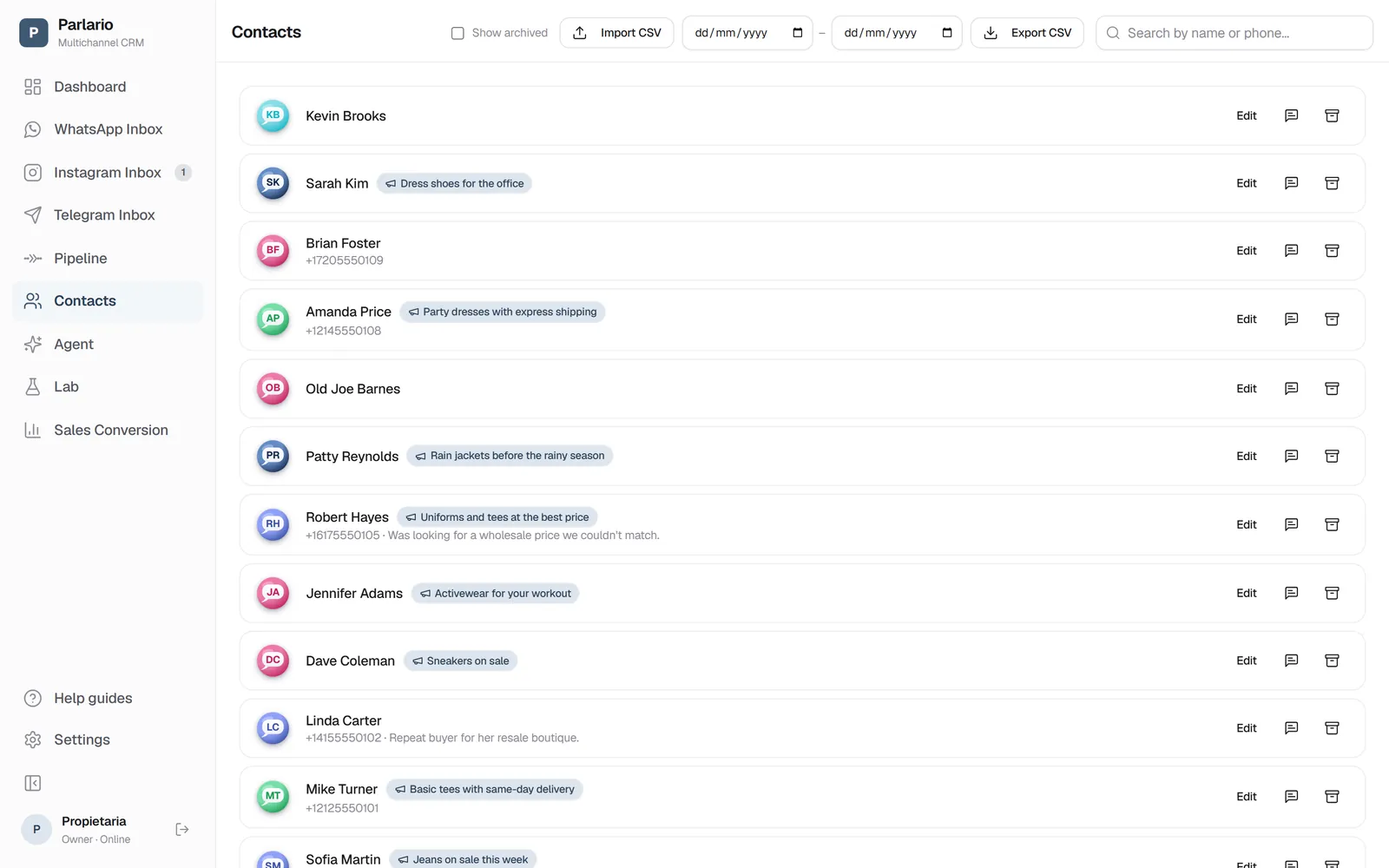
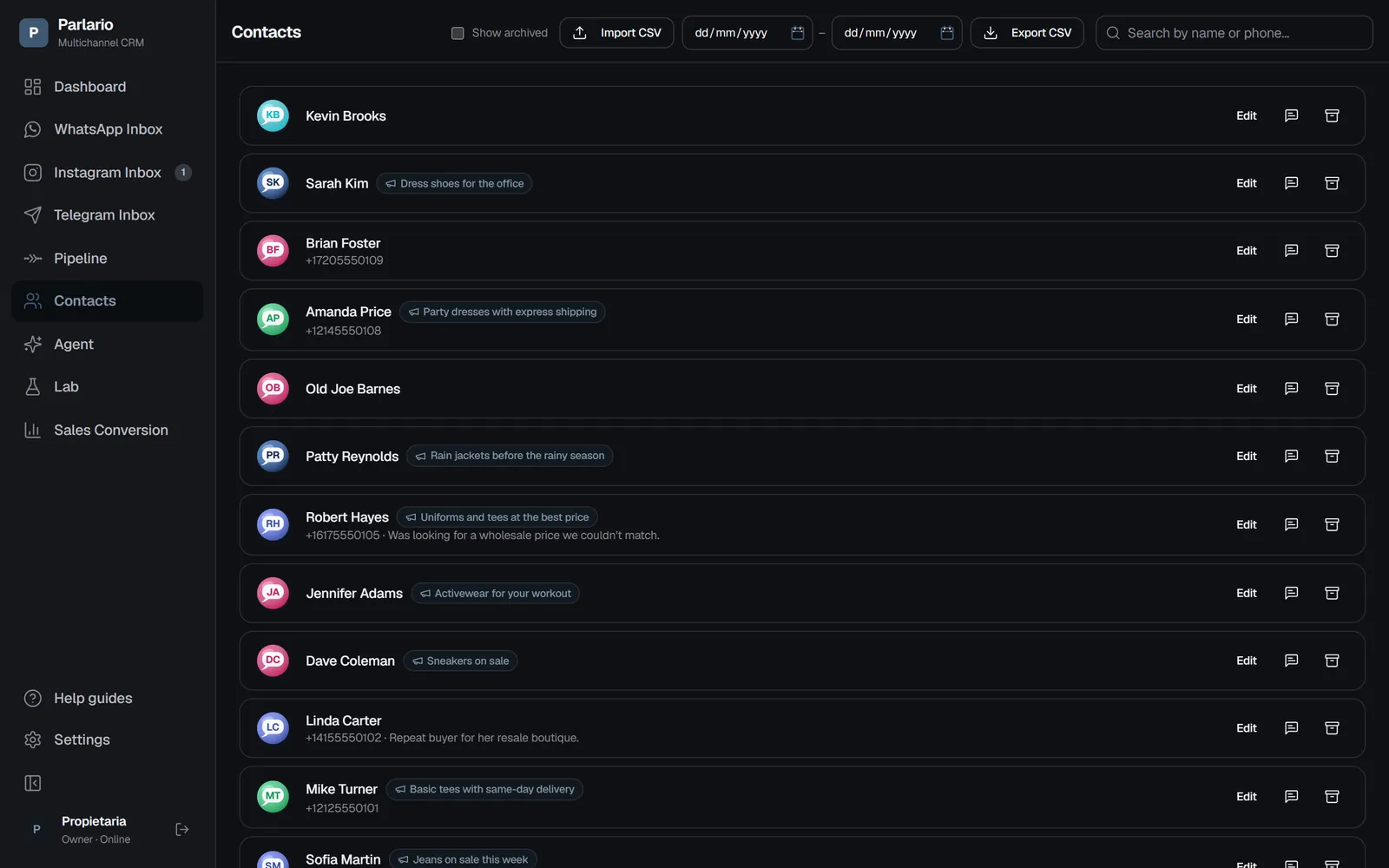
Contacts Tag and filter
A tag is a coloured mark you put on a contact to remember something: Customer, Quote sent, Wholesale. Each contact shows its own under the phone number, and the dropdown at the top filters the list by one of them — combined with the search box, so you can ask for "the ones called Martin who are tagged Wholesale".
Tags are created by the owner, once, in Settings → Tags (a name and a colour). After that anyone on your team can add and remove them on a contact from its panel in any Inbox — WhatsApp, Instagram or Telegram. They're created in one place on purpose: if everyone invented their own, you'd end up with VIP, vip and V.I.P. and the filter would stop being useful.
If you also use Routes (Business and Advanced plans), a Route can add a tag on its own and another Route can branch on it later. That's covered in the Routes lesson.
Archive what you don't need to see
Archive contacts you don't need in the main list (without losing their history), and unarchive them whenever you want.
Export to CSV (Business and Advanced)
The "Export CSV" button downloads your list (name, phone, originating campaign, campaign history, and current stage) ready to open in Excel or Google Sheets. You can narrow what gets exported with the search, the archived filter, and two date pickers (From/To). Only the Owner can export.
Import your contacts from a CSV
Available on all plans; the Owner and support access can do it. If you're coming from another tool, from Excel or from the WhatsApp Business app, bring your list: just the name and the phone, without chat history.
Prepare the file
A CSV with a name column and a phone column. From Excel or Google Sheets: File → Download / Save as → CSV. If it has a header (for example “Name” and “Phone”), other columns are ignored. Up to 5,000 contacts per file.
Pick the file
In Contacts, tap “Import CSV” and pick the file.
Type the country code
For numbers that don't include one (for example 1 for the US or 57 for Colombia). Numbers starting with + or 00 are used as they are.
Review
Tap “Review”: Parlario shows how many contacts are new, how many you already had get a new name, how many rows repeat a phone and which rows don't have a valid phone, with their row number. Nothing has been saved yet.
Import
Tap “Import” to confirm.
A phone that's already in Parlario isn't duplicated: if the file has a different name, the name is changed. No message is sent, no Routes or AI are triggered, they don't enter the Pipeline and they don't count as Active Contacts. When one of these people messages you, you'll already know them by name.
With several numbers
- A customer who wrote to two of your numbers is one contact, with one conversation per number.
- When you export to CSV, the "Number" selector lets you bring only the contacts who have a conversation on a specific number, or leave "All numbers".
- A member limited to certain numbers only sees the contacts who wrote to those numbers, plus the ones with no conversation yet.
The full details are in Several numbers and accounts.
Recap
- The CSV export includes each contact's full campaign history, not just the first touch
- Exporting to CSV is available on the Business and Advanced plans, and is owner-only
To unmark the lesson, select the button again.
Questions? Visit our support portal: support.parlario.co