

Connect your WooCommerce store
What you'll learn
- The event isn't configured, or its "Send this message" toggle is off
- The order's phone number doesn't match any of your contacts. Parlario messages people who are already your contacts on WhatsApp — it doesn't create a contact out of an order. In WooCommerce customers type their phone freely at checkout, so a number without its country code is the most common reason
- That contact has no WhatsApp conversation yet
- The order is old: it was paid or completed more than a day ago and you're only editing it now. Parlario doesn't confirm an old purchase to a customer
- The chosen template was deleted, Meta withdrew its approval, paused or disabled it for low quality (Settings → Templates shows why), or Meta reclassified it as marketing
- The order doesn't carry the piece of data you mapped — a completed order with no tracking number, for instance
- The payment was never recorded on the order (cash on delivery, bank transfer)
Connect your WooCommerce store and every customer hears about their order where they already talk to you: on WhatsApp. When an order is paid, and again when it's completed, the message goes out on its own, in the same conversation.
Parlario only reads your store. It never creates, edits or cancels an order, and it never touches your inventory. It asks WooCommerce for Read access and nothing more.
You don't install any plugin, and you don't create any key. WooCommerce already includes everything needed: you approve one screen in your own WordPress, and it hands Parlario the access behind the scenes.
It's available on the Business and Advanced plans, and it's set up by the owner or by whoever holds implementation access — connecting a store is exactly the kind of task a business hires someone to do.
Turn on the integration
Go to Settings → Extensions → Integrations and turn on the "On" toggle on the WooCommerce card. Nothing is connected yet — this enables the integration for your organization and reveals the WooCommerce tab where the rest happens.
Connect your store
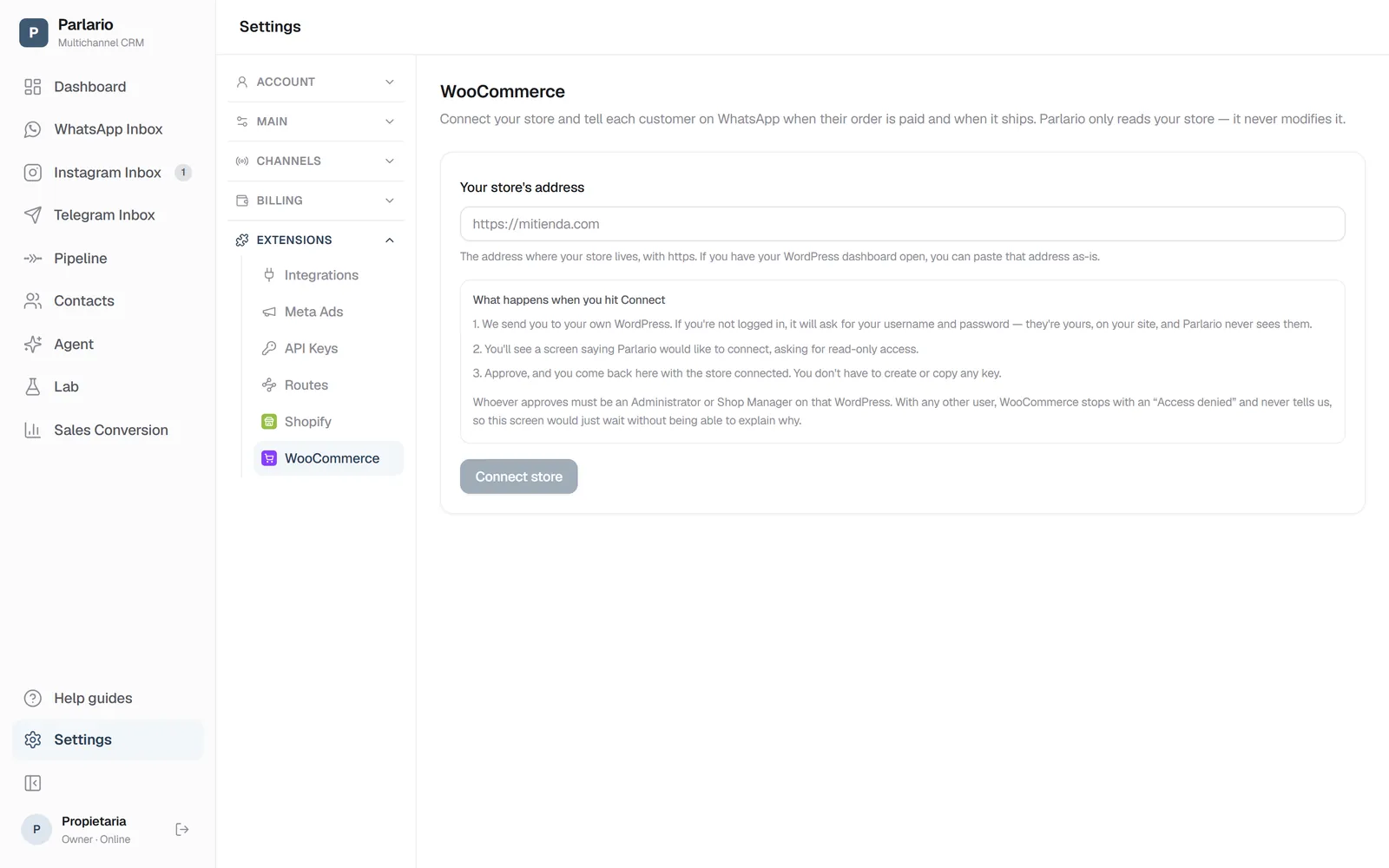
Open the WooCommerce tab under Extensions and type your store's address, for example
https://yourstore.com. If you have your WordPress dashboard open, you can paste that address as-is and Parlario works out the store.Click "Connect store." Before sending you anywhere, Parlario checks your store, and if something is wrong it tells you exactly what: no HTTPS, WooCommerce not active, a security plugin blocking access, or the permalink setting.
Then Parlario sends you to your own WordPress. If you're not logged in, it asks for your username and password — they're yours, on your site, and Parlario never sees them.
You'll see a screen that says "Parlario would like to connect to your store", giving Parlario Read access to view coupons, customers, orders and sales reports, and products. Check that it says Read. If it ever says Read/Write, don't approve it and contact us.
Click Approve. You land back in Parlario with your store's name on screen. If that name isn't your store, you connected the wrong one.
If you never come back to Parlario, the user who approved isn't an Administrator or Shop Manager: WooCommerce stops with an "Access denied" page and has no way to tell us. Log in with an administrator and try again.
Settings → WooCommerce Create the two webhooks
This is the one step you do by hand, once. Parlario connects with read-only access, and creating a webhook counts as writing to your store — so instead of asking you for a key that could change your store, you create these two yourself. It takes about two minutes.
In Parlario's WooCommerce tab you'll find two values ready to copy: the Delivery URL and the Secret. The secret appears hidden: click the eye to see it, or just copy it without showing it.
In WordPress, go to WooCommerce → Settings → Advanced → Webhooks and click "Add webhook". Create two, identical except for the topic:
- Webhook 1 — Topic: Order created
- Webhook 2 — Topic: Order updated
In both: a Name that tells you what it is, like "Parlario — Order created"; Status: Active; Delivery URL and Secret: the ones you copied, the same in both; API Version: WP REST API Integration v3. Then click "Save webhook".
You need both: one brings the orders that are paid the moment they're placed, and the other brings the ones paid or completed later. When the first real order notification arrives, Parlario's WooCommerce tab says so.
Treat the secret like a password. Anyone holding it could send Parlario fake orders from your store.
Get your templates approved first
These messages reach the customer hours or days after they last wrote to you, so WhatsApp requires them to be approved templates — free text isn't allowed that late. Create them in Settings → Templates and wait for Meta to approve them. Only approved templates appear in the next step.
A Parlario template carries exactly one variable, written
{{1}}. So write the sentence around the single piece of information that matters:- Your order {{1}} is confirmed. Thanks for shopping with us!
- Good news: your order {{1}} is on its way. Thanks for shopping with us!
The variable cannot open or close the message. WhatsApp rejects a body that starts or ends with
{{1}}— leave text on both sides of it.Use utility templates. Order messages go out because someone bought, not because they agreed to receive promotions, so Parlario won't send a marketing template for an order — even one Meta reclassified as marketing after approving it.
Choose the message for each event
In the WooCommerce tab you'll find the two events Parlario can act on. For each one, pick the template and then pick what fills its
{{1}}:- When an order is paid: order number, order total, or customer name.
- When the order is completed: order number or customer name — and the tracking number, only if your store saves one.
WooCommerce doesn't save a tracking number on its own: a shipping plugin does, if you have one — Parlario reads the ones from WooCommerce Shipment Tracking, Advanced Shipment Tracking (AST) and AfterShip. If you're not sure your store saves it, use the order number, which always exists. If you pick the tracking number and an order doesn't have one, Parlario skips that message rather than send one with a gap where the number should be. And if you add the tracking number later, after marking the order Completed, the message goes out then.
Then turn on "Send this message" and click Save. Both events start off: a connected store sends nothing until you turn an event on, on purpose.
What counts as paid, and what counts as shipped
Paid is when your store records the payment. Parlario looks at the payment itself, not at the order status, because "Processing" means different things in different stores.
Shipped is when you mark the order Completed. WooCommerce has no separate shipping step, and Completed is what most stores use to mean "it's on its way".
If you charge cash on delivery or by bank transfer, your store may not record the payment on its own, and then the paid-order message doesn't go out. Record the payment on the order and it goes out then.
An order that is paid and completed at the same time sends both messages, in order: first the payment, then the shipping.
Only recent orders send a message. If you edit an order today that was paid or completed more than a day ago, Parlario stays quiet. Telling someone their order is confirmed weeks after they bought it would confuse them, not help them.
If your store stops notifying us
WooCommerce sends each notification once and never retries it. If a delivery fails five times in a row, it disables the webhook on its own and doesn't tell anyone.
Parlario does. The WooCommerce tab tells you:
- which webhook is missing, paused or disabled, and where to turn it back on;
- if a webhook points to Parlario with a URL that isn't this connection's;
- if your webhooks show as active but their notifications don't reach us — almost always a secret pasted wrong.
In the meantime no orders get lost: besides receiving the notifications, Parlario fetches the orders from your store periodically. They just arrive late until you fix it.
When you turn the webhook back on, the warning disappears at the next check, within about 15 minutes.
See what they bought, without leaving the Inbox
Once a store is connected, open any conversation and look at the Details panel on the right: a Purchases section lists that customer's orders — order number, total and what they bought. No switching to your WordPress to find out who you're talking to.
It appears only for contacts who have actually ordered, and it shows the last 90 days, not the whole history: Parlario deletes the content of each order 90 days after it arrives.
Your Meta Ads ROAS gets the real amount
If you also report conversions to Meta (Settings → Meta Ads), every paid order sends Meta how much was sold, not just that a sale happened. There is nothing new to configure: it uses the same Pixel and Conversions API token you already saved.
One thing changes on its own. With a store connected, the order becomes the source of the sale, so dragging a card to "Won" in the Pipeline stops reporting a purchase. Otherwise the same sale would be counted twice and your ROAS would come out inflated. Without a store connected, nothing changes.
With several numbers
If you connected more than one WhatsApp number, each notification goes out from the number the customer last talked to you on. There's nothing to configure, and with a single number it's exactly what it always was. The chosen template has to exist in that number's WhatsApp Business account. The full details are in Several numbers and accounts.
Each order produces one message per event, even though WooCommerce notifies Parlario every time the order is edited. Every customer you message counts towards your Monthly Active Contacts allowance, so a high-volume store can use it up quickly — check your plan before turning these on.
To disconnect, use the "Disconnect" button in the WooCommerce tab. Parlario deletes its access, and your conversations and everything already sent stay as they are. Two things remain in your store that only you can remove, because Parlario never writes to it: the API key (WooCommerce → Settings → Advanced → REST API) and the two webhooks. They're useless without the connection, but you should know they're there.
Recap
- Available on the Business and Advanced plans; connected by the owner or by whoever has implementation access
- No plugin and no key to create: you approve one screen in your own WordPress
- Read-only access — Parlario never changes anything in your store
- One manual step: two webhooks, Order created and Order updated, with the same URL and secret
- Two events: order paid (payment recorded) and order completed
- The tracking number goes out only if your store saves one; if you're not sure, use the order number
- If WooCommerce disables a webhook, Parlario tells you, and your orders aren't lost in the meantime
To unmark the lesson, select the button again.
Questions? Visit our support portal: support.parlario.co