

Utility templates: Default
What you'll learn
- How to build a Utility template with variables, header, footer and buttons
- Why Meta asks for an example of every variable
- How to send it from the Inbox and fill in each detail
A Default Utility template is a normal WhatsApp message that you prepare once and reuse: for example, "Hi Ana, your order #1042 is ready for $350." with a Pay button. The parts that change from customer to customer (the name, the order number, the total) are variables.
In this lesson we build that exact example, start to finish.
Open the form
In Parlario, go to Settings → Templates. The New template form is at the top. On the right there's a Preview shaped like a WhatsApp message: it updates as you type, so you always see what the customer will get.
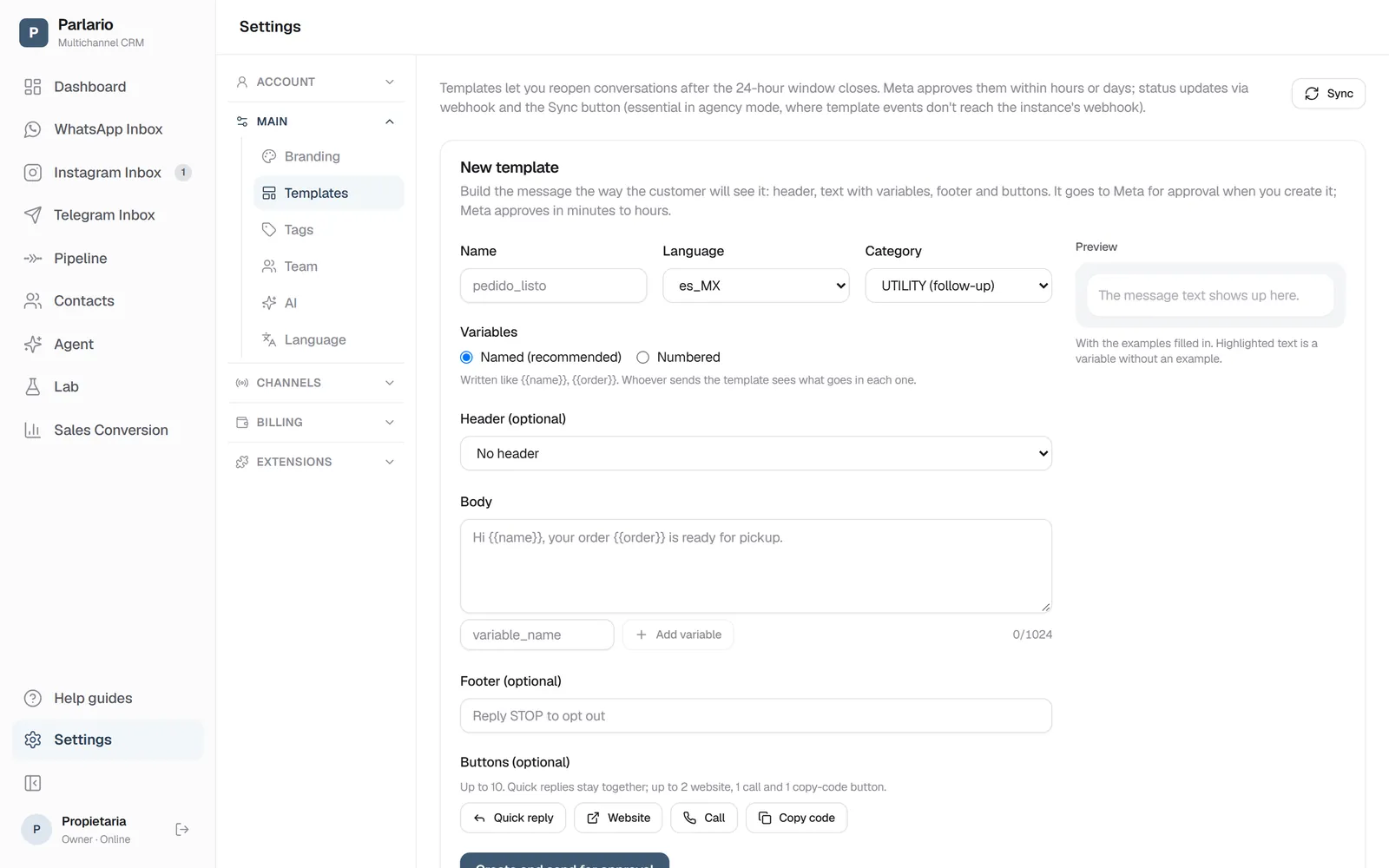
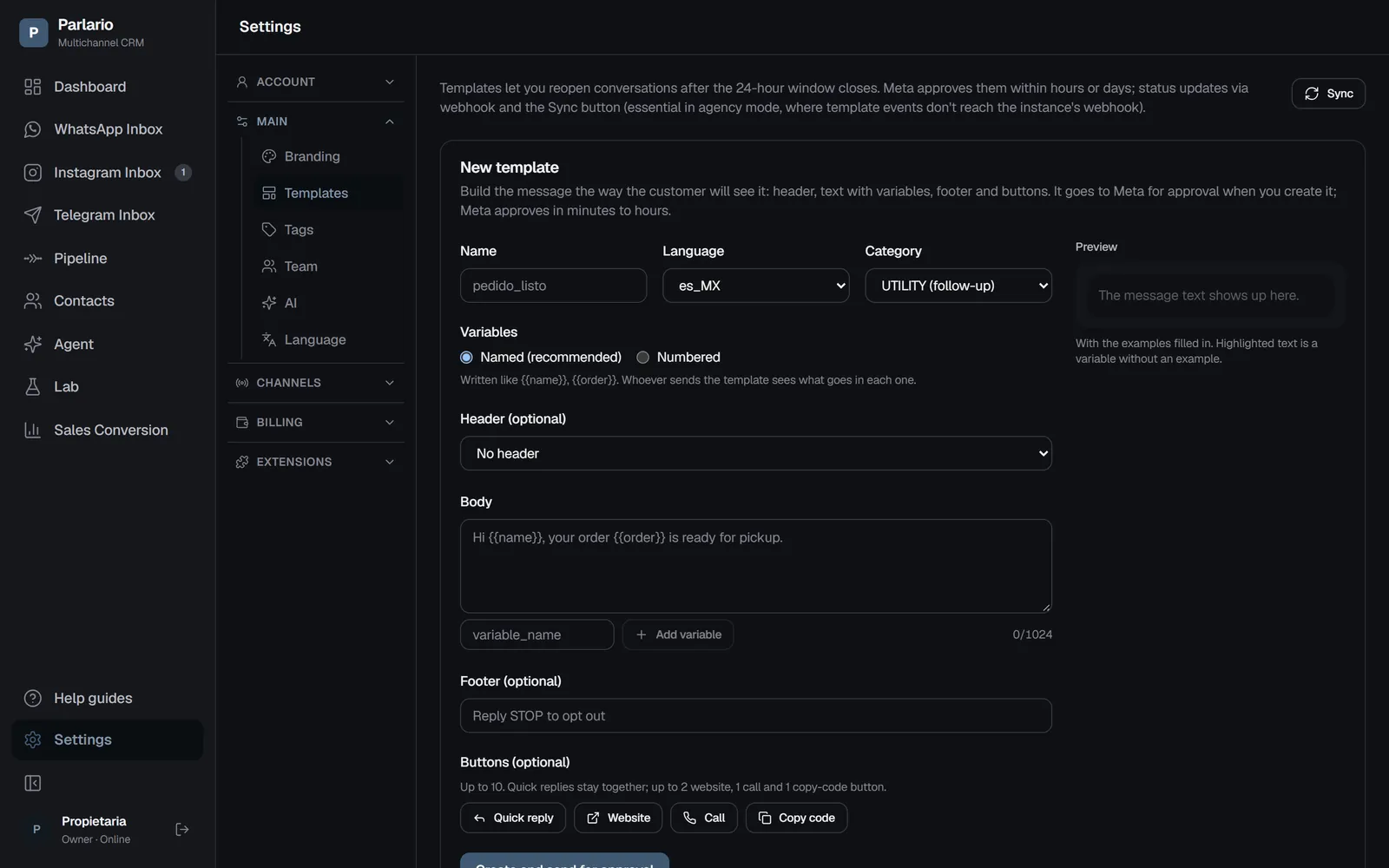
Settings → Templates: the form to create one Name, language and category
Name: a short internal name, for example
order_ready. Only lowercase letters, numbers and underscores — if you type a space or a capital letter, Parlario fixes it for you. The customer never sees it.Language: the language the message is written in (for example
en_US). Category: choose UTILITY.If your numbers are in several WhatsApp Business accounts, you'll also see Which number will use it? at the top: pick the number that will send it, or All my numbers.
Leave variables as "Named"
Under Variables, keep Named (recommended). Your variables will look like
{{name}}or{{order}}, so whoever sends the template knows exactly what goes in each one. (Numbered —{{1}},{{2}}— also works, if you prefer it.)Add a header (optional)
The header is the bold first line. In Header choose:
- Text — up to 60 characters, for example
Order {{order}}. It can have one variable, and no bold, italics or line breaks. - Image (JPG or PNG, up to 5 MB), Video (MP4) or Document (PDF) — click "Upload sample file". That file is the one Meta reviews and the one every customer receives.
- No header — perfectly fine.
- Text — up to 60 characters, for example
Write the message
In Body write the text, for example:
Hi {{name}}, your order {{order}} is ready for {{total}}. You can pay with the button below.To insert a variable, type its name in the small box (for example
total) and click "Add variable" — or just type it with the double braces. Up to 1024 characters.Fill in one example per variable
For every variable an Examples for Meta box appears. Meta's reviewer reads the message with these examples, so use realistic data:
Ana,#1042,$350. Don't use a real customer's data. You'll see the examples filled into the preview.Add a footer (optional)
A small grey line at the end, for example
Thanks for shopping with us. No variables here.Add buttons (optional)
Click the button type you want under Buttons (up to 10 in total):
- Website (up to 2) — text like
Payand a link. For a different link per customer, end it with{{1}}:https://yourstore.com/pay/{{1}}, and write an example ending (abc123). You'll fill in the real ending when sending. - Quick reply — a button like
I have a question. When the customer taps it, their reply lands in your Inbox like any message, and your AI Agent reads it. - Call (1) — text and your phone with country code, for example
+1 555 123 4567. - Copy code (1) — a code the customer copies with one tap (more common in Marketing).
Remove a button with the × on its corner.
- Website (up to 2) — text like
Check and send for approval
Click "Create and send for approval". If something breaks one of Meta's rules, Parlario marks it in red under that field — for example "The message can't start or end with a variable" or "Missing the example for {{total}}". Fix it and click again. When it goes through, the template appears in the list as Pending Meta.
Wait for approval
It changes to Approved on its own, usually within minutes. If it says Rejected, the reason is shown under it: you can't edit a template already sent, so delete it (trash icon) and create it again with the fix.
Send it to a customer
In the Inbox, open a conversation whose 24-hour window has closed. Choose order_ready in the template picker. Parlario asks for one field per detail: name, order, total, and the end of the link for the Pay button. A variable that appears in both the header and the message (
{{order}}) is asked only once. Fill them in and click Send template.
Automatic messages only take simple templates
Pipeline automatic reminders and the Shopify and WooCommerce notifications have a single detail to fill in (the contact's name, or one detail of the order). So they only accept templates with at most one variable, in the message — no variable in the header, no link ending in {{1}}, no copy code. If you pick one that asks for more, Parlario won't let you save it. Templates that need more can always be sent by hand from the Inbox.
Keep it truly transactional
If a Utility template sounds like a promotion ("20% off this week!"), Meta changes it to Marketing — and Parlario brings that change in as soon as Meta reports it, or when you click Sync. Marketing templates require the customer's opt-in. Promotions go in Marketing: Default.
Recap
- Named variables (
{{name}}) are the default and the easiest to send - Parlario checks Meta's rules before submitting and points to the exact field
- A header image, video or PDF is uploaded once and goes out with every send
- An approved template can't be edited: delete it and create it again
To unmark the lesson, select the button again.
Questions? Visit our support portal: support.parlario.co