

Routes: menus that answer on their own
What you'll learn
- How to turn Routes on, and where they live in Parlario
- The difference between a Route and your AI Agent, and when to use each
- How to build a menu from a template and activate it
- What each type of step does, what your customer sees, and how steps hook onto each other
- How a Route looks on Telegram, and what your customer taps there
- What tags are, who creates them, and how a Route sets and reads them on its own
- How to send a catalogue or a PDF, and why your file is never published on the web
- How to read the run history to find out where people drop off
A customer writes menu to your WhatsApp number or to your Telegram bot. Instead of your AI Agent composing an answer, Parlario replies with the same three buttons every single time — Sales, Support, Opening hours — and each button takes that person exactly where you decided it should. That's a Route.
Routes are for the parts of a conversation where you don't want anything decided in the moment: the opening menu, the questions you always ask a new lead, the four answers you repeat all day. Your AI Agent keeps handling everything else — a Route only takes over while the customer is inside it, and hands the conversation straight back when it's done.
Routes are available on the Business and Advanced plans, and only the organization owner can turn them on, build them, or activate them — your team never sees the builder. Business can have 3 routes switched on at a time and Advanced as many as you want; drafts never count, so on either plan you can build and compare as many as you need.
WhatsApp and Telegram
Routes run on WhatsApp conversations and on your Telegram bot's conversations. You build a Route once and it serves both. Your Instagram conversations aren't affected — your AI Agent keeps answering them the way it does today.
The reason is Meta's, not ours: Instagram has no equivalent of WhatsApp's button menus and lists. A Route there would have to ask people to type “1”, which is a different and worse product. Telegram does have real buttons, so Routes work there too — the section Routes on Telegram, further down, shows exactly what your customer sees.
A Route or your AI Agent?
They aren't competing, and neither needs the other. Routes work with your AI Agent switched off — nothing in a route asks a model anything, which is the whole point — and your Agent works exactly as it always has whether or not you ever build a route. Most businesses end up running both, for different jobs.
- A Route is the right tool when the answer has to be identical every time: your address, your opening hours, the menu that sorts people into Sales or Support, the two questions you ask before passing a lead to a salesperson. It never improvises and it can't get a fact wrong.
- Your AI Agent is the right tool for everything you can't script in advance: a question phrased in a way you didn't anticipate, a customer who wants to negotiate, someone asking about a product in their own words.
While a customer is inside a Route, your AI Agent stays quiet — otherwise both would answer the same message. The moment the Route finishes, the Agent picks the conversation back up, exactly as before.
Turn on the extension
As the owner, go to Settings → Extensions → Integrations and switch on the "On" toggle on the Routes card. Just like Google Calendar, nothing about Routes appears anywhere in Parlario until you do this — no tab, no menu entry. Once it's on, a new "Routes" tab shows up under Extensions with its own icon. Turning the toggle back off later hides everything again and stops your active Routes from running, without deleting anything you built.
Start from a template
Open the Routes tab and click "New route." You can start blank, but the four templates are the fastest way to understand how the pieces fit together — each one is a complete, working Route that you're free to edit:
- Welcome menu — greets whoever types a keyword and routes them to the right place based on what they pick.
- FAQ bot — the customer picks a topic from a list and gets the answer, with nobody on your team involved.
- Lead capture — on a new contact's very first message, asks for name and email, then hands off to sales with those details saved in the contact's notes.
- Sell with a payment link — shows your products, services or events, sends the payment link for the one the customer picks behind a Pay now button (from Stripe, Mercado Pago, Wompi, PayPal or whatever you use) and, when the customer says they've paid, hands the conversation to your team to check the payment and confirm it. Parlario doesn't take payments or see them. It comes with example links and can't be activated until you paste your own in each payment step's Button link field.
A new Route is always created as a draft. Drafts do nothing to real conversations, so you can take as long as you need to get it right.
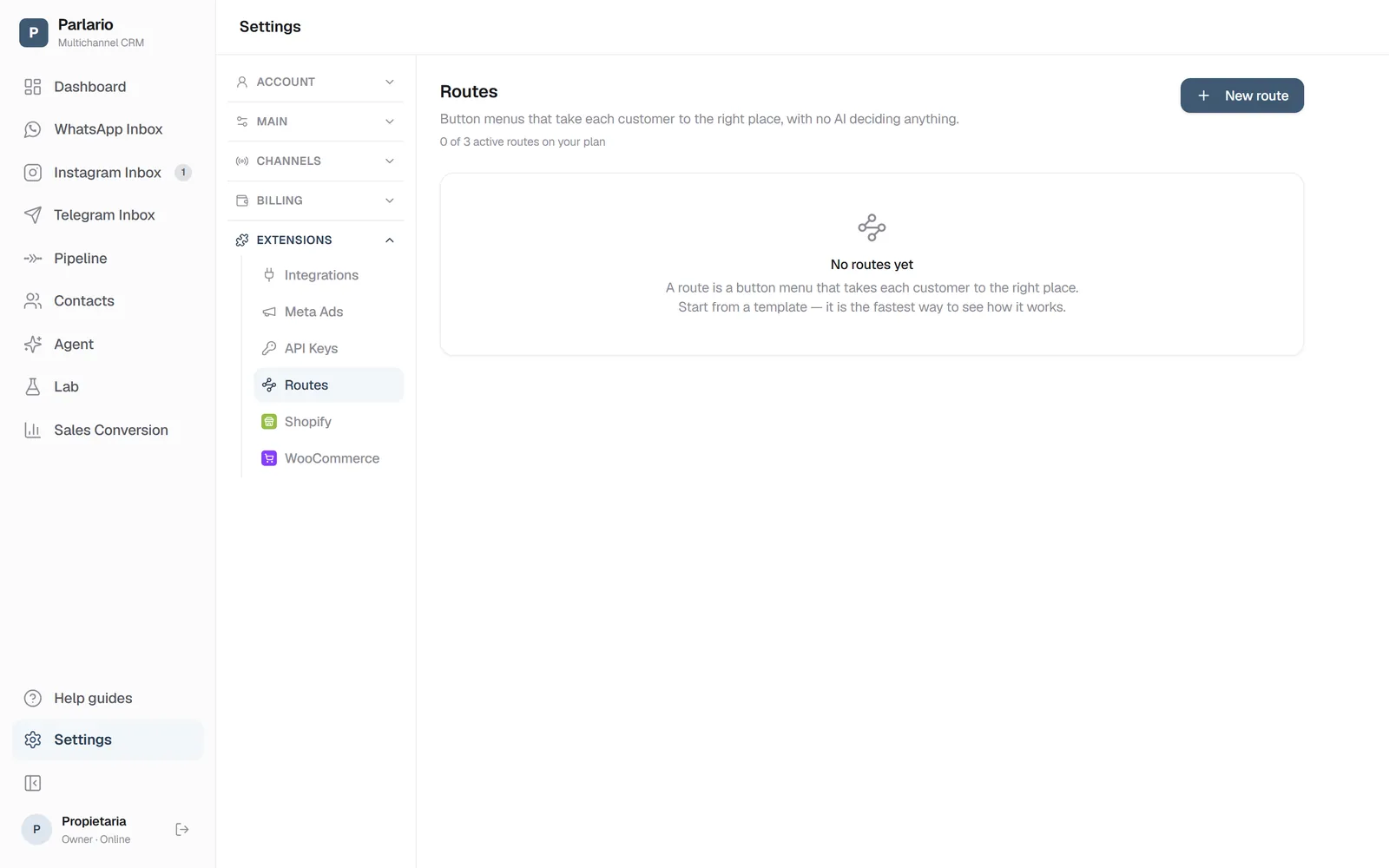
Settings → Routes Decide when it starts
At the top of the builder, "When does it start?" gives you two options:
- When they type a word — the Route starts when a customer's message contains any of the words you list, separated by commas (for example: menu, hi, help). Capitals and accents don't matter.
- On the contact's first message — the Route starts with the very first message a brand-new contact ever sends you, and only that once. This is the one to use for lead capture.
Build the steps
A Route is a series of steps, and every step says what happens next. The builder shows them two ways, and you switch freely between them with the Canvas / List toggle:
- Canvas is the map — the whole shape at a glance, where it branches, where each branch ends. Drag the boxes to lay it out however makes sense to you; your arrangement is saved with the Route. Click any box to jump straight to that step.
- List is where you write the actual content — the message text, the button labels, and where each button leads.
Every step that offers a choice — a button, a list option — asks you to pick where that choice leads, from a dropdown of your other steps. That's what draws the map on the canvas.
At the top of every step there's "Name for this step", so you can call it something of your own instead of message_1. It's worth using from the start: that name is what you'll see in the destination dropdowns later.
Fix what's flagged, then activate
Parlario checks your Route as you build and lists anything wrong in plain language: a button that leads nowhere, a step nobody can reach, a path that never ends, a message longer than WhatsApp allows. Save always works — you can leave a half-built Route and come back tomorrow. Activate only unlocks once that list is clean.
One more check happens at activation: if another active Route already uses one of your keywords, Parlario refuses and tells you which Route and which word. Two Routes racing for the same word would be a coin flip on every message, so you either pick a different word or pause the other Route.
Watch it run
The History button inside a Route shows everyone who has been through it: which contact, which step they're on right now, when they started, and how it ended — Completed, Handed off, Abandoned, Failed (a message couldn't be delivered, for example because the customer blocked your Telegram bot) or In progress. This is where you discover that everybody quits at step four, which is usually the fastest way to make a Route better.
The steps you can use
There are ten, and they make more sense grouped by what they do: some talk to the customer, some decide or remember without the customer seeing anything, and two end the Route.
The ones that talk to the customer
- Send message — plain text, then moves on by itself to the next step. Optionally with a link button (see below).
- Send buttons — up to 3 buttons of 20 characters each, and each button leads to its own step. This is the workhorse of most Routes. Here the Route waits: it doesn't move until the person taps something.
- Send list — up to 10 options of 24 characters each, behind a single tappable button. Use it when three choices aren't enough. It waits too.
- Send a file — sends an image, a video or a document (PDF, Word, Excel) and moves on. It has its own section further down.
- Ask and save — asks a question and stores whatever the customer types (an email, a name, an order number) under a name you choose. Waits for the answer before moving on, and can check that it's a name, an email, a phone or a number. It can also carry a link button.
The ones that decide or remember, with nothing shown to the customer
- If / then — sends people down one path or another. It can decide on three different things:
- A saved answer — something you captured earlier with Ask and save: whether it has a value at all, whether it equals something, whether it contains something.
- A tag on the contact — whether that person carries one of your tags, or doesn't.
- A contact detail — their name, their phone, the internal note, or the ad they came from.
- Add or remove a tag — marks the contact with one of your tags, or takes it off them, and moves on. The customer sees nothing: the tag is yours, for your CRM.
The ones that end the Route
- Hand off to a person — sends the customer whatever you write in "What the customer is told", then marks the conversation as needing a human, exactly like your AI Agent's own escalation does: same flag, same notification, nothing new for your team to learn. Write something there: handing off also silences your AI Agent, so if that field is empty the customer taps and gets nothing back at all. The separate note field is for whoever picks the conversation up — it's saved in the contact's notes and is never sent to the customer. Assign to picks which team member gets it: only they are notified, and the customer doesn't see the name.
- End — the Route is over and the conversation goes back to normal. If your AI Agent is on, it answers the next message; if it's off, the conversation simply waits for someone on your team, the same as any other conversation.
How steps hook onto each other
No step knows "what comes next" by sitting below it in the list. Each step points at the next one, and you choose that in a dropdown:
- Steps that do one thing and carry on — send a message, send a file, add a tag — have a single exit: the "Moves on to" field.
- Steps that offer choices have one exit per choice: every button and every list row carries its own destination, so each choice can start a different branch.
- If / then has exactly two: one for when it matches and one for when it doesn't. Both are required — leave one empty and half your customers would wait forever.
That's what draws the map on the Canvas: the arrows you see are those destinations. And it's why Parlario won't let you activate a Route with an empty destination, or with a path that never reaches an End or a Hand off: that would be a real conversation cut in half.
Naming your steps
Every step is born with an automatic name — message_1, buttons_2 — and at the top of its form there's a "Name for this step" field to change it to something of your own: Main menu, Ask for email, Send to sales.
It isn't decoration. That name is what you see in the dropdowns when picking destinations, so in a ten-step Route the difference is choosing "Main menu" instead of guessing which one buttons_2 was. The customer never sees it; it's only for you.
The automatic name stays visible in small grey type next to yours, because the validator's error messages mention it ("set_tag_1: pick the tag") and that way you can match them at a glance.
Tags: your CRM's memory
A tag is a mark you put on a contact to remember something about them: Customer, Quote sent, Wholesale, Do not disturb. That's all they are — and that's why they're useful for so much.
Tags are not part of Routes: they work even if you never build a Route, on any plan. What the new version adds is letting a Route set and read them on its own.
You create them once
As the owner, go to Settings → Tags and create the ones you need: a name and one of six colours. It's the only place they're created, and that's deliberate. If everyone on your team could invent a tag from wherever they were working, within a week you'd have VIP, vip and V.I.P. living side by side, and filtering by tag would stop being useful for the one thing it's for. For the same reason, Parlario won't let you create two tags with the same name even if the capitals differ: Customer and customer are the same tag.
Your whole team uses them
Creating tags is yours alone, but anyone on your team can add and remove them, from the contact panel in any Inbox — WhatsApp, Instagram or Telegram: the coloured chips under the name. Tagging is part of handling a conversation, not part of configuring the product.
They're how you find people again
In Contacts, each contact shows its tags — Telegram contacts included — and there's a dropdown at the top to filter by one of them. It combines with the search box, so you can ask for "the ones called Martin who are tagged Wholesale".
And a Route can set and read them on its own
This is where the circle closes, and where tags stop being a notebook and become automation. Two steps touch them:
- Add or remove a tag writes: pick the action (add or remove) and which of your tags. If the contact already had it, nothing bad happens — going through that step twice doesn't create two tags.
- If / then reads: pick "A tag on the contact" and the Route branches on whether that person carries it.
A full example, and the one most people end up building. A Route asks with buttons "Are you already a customer?"; the Yes branch passes through an Add or remove a tag step that puts Customer on them and carries on. Weeks later, another Route opens with an If / then on that same tag: the ones who are already customers skip the introduction and get straight to the point, and the ones who aren't get the full welcome. Nobody on your team touched anything, and in Contacts you can filter everyone who said yes.
On a tag you can only ask whether it is or is not on the contact: a tag is either there or it isn't, so "contains" wouldn't mean anything.
Sending a file
The Send a file step sends an image, a video or a document and carries on by itself, waiting for nothing. The PDF catalogue, the price list, the instructions, the photo of your shop.
You upload it from inside the step
The step has an Upload button: you pick the file from your computer right there, without leaving what you were building. It's kept in your account, so the next Route that needs it picks it from the dropdown without uploading again. Next to it is the optional text alongside it field, which appears under the file in the chat.
- Up to 16 MB, as an image (JPG, PNG, WebP), a video (MP4, 3GP) or a document (PDF, Word, Excel). Pick something larger and it tells you straight away, before uploading anything.
- If you upload the same file twice, Parlario notices and selects the one you already had instead of keeping a copy. It recognises it by its contents, so renaming it doesn't fool it.
- To delete one, select it in the dropdown and click the bin icon that appears beside it.
- Only the owner can upload files: what goes up goes out in your business's name, from your WhatsApp number or your Telegram bot.
- This step works on WhatsApp and Telegram. On Telegram a JPG, PNG or WebP image up to 10 MB arrives as a photo, a video as a video, and anything else (PDF, Word, Excel) as a file the customer opens or downloads.
Your file is never published on the web
This is worth spelling out, because it's where we differ from how other tools solve it. Your file is stored inside Parlario and handed to WhatsApp or Telegram only at the moment of sending. There is no web address it can be downloaded from — not a public one, not a secret one.
The usual alternative is to ask you for a link to your own file, but for that to work WhatsApp has to be able to download it with no credentials at all — meaning the file has to stay reachable by anyone holding the link, for as long as the Route is switched on. For a catalogue that's fine. For a registration form with your customers' details, it isn't. We'd rather you never had to think about it.
Since there's no address to view it at, the builder shows you the file's name, type and size, but not a preview. That's the price of the above, and we think it's a cheap one.
If you delete a tag or a file a Route uses
You can delete them anyway — we don't block you. Not being able to tidy up your own configuration would be worse.
Here's what happens instead: the next time you try to activate that Route, Parlario refuses and tells you exactly which step is now pointing at something that no longer exists. You open it, pick another tag or another file, and activate.
And if the Route was already switched on when you deleted, conversations in progress are not cut off: the step that lost its tag or its file simply does nothing and the Route carries on to the next one. A customer waiting for an answer shouldn't pay for you having deleted a PDF.
Reusing what the customer told you
Link button. The Send message and Ask and save steps have a Link button (optional) box: write the button text (up to 20 characters, for example Pay now) and the link (https://…). The customer gets your message with that button under it, instead of the link pasted into the text — a bare link can't always be tapped on a phone; a button always can. To remove it, tap the × on the box.
When an Ask and save step stores an answer, you can drop it into any later message. Save the answer as name, and a later step reading "Thanks {{vars.name}}, someone will be with you shortly" arrives with the real name filled in. The builder shows you the exact text to copy right under the field where you name it, so there's nothing to memorize.
What language a route speaks
Whatever language you typed it in. A route sends the exact text you wrote — your AI Agent's language setting doesn't touch it, because nothing here is generated. Templates are cloned in whichever language your interface was set to when you created the route, so if you started one with Parlario in Spanish and want it in English, either edit the text or delete the route and clone the template again with the interface switched over.
If your AI Agent is multilingual
Your Agent detects the language a customer writes in and answers in it. A route can't do that — it has no model deciding anything, which is the whole point of using one. So a route written in Spanish answers a customer writing in English in Spanish, and then, once the route ends, your Agent picks up and switches to English as usual. The mismatch is confined to the scripted part.
The way to handle it today is to make the language a choice the customer makes: start the route with a Send buttons step offering Español / English, and point each button at its own branch. It costs you a duplicated tree, and WhatsApp's 3-button limit caps you at three languages, but every customer gets scripted answers in their own language. If your traffic is genuinely multilingual and unpredictable, the better answer is to leave those conversations to the Agent and keep routes for the parts where you already know who you're talking to.
When the customer says something unexpected
This is the normal case, not the rare one: you send three buttons and the person types "hi I need help" instead of tapping one. Parlario repeats the question twice, and if it still doesn't get a valid answer it hands the conversation to a person rather than looping forever. And if someone simply walks away mid-Route, after 24 hours of silence the Route releases them — nobody stays stuck inside an abandoned menu.
Worth knowing before you build
- WhatsApp and Telegram. Instagram conversations aren't affected.
- WhatsApp's own limits apply: 3 buttons of 20 characters, or 10 list options of 24 characters. The builder stops you before you can break them, instead of letting WhatsApp reject the message later. Since the same Route also runs on Telegram, the same limits apply there.
- One Route at a time per conversation. While someone is inside a Route, another one can't start on top of it. If you have several numbers, they can be in a Route on each one.
- On WhatsApp, the 24-hour window still applies. A Route can only send messages while the conversation is open — the same rule as everything else in Parlario. If it's closed, the Route simply doesn't start. Telegram has no window: there a Route can always reply.
- Editing an active Route takes effect immediately. Changes apply to the next customer who enters it, so if you're reworking something significantly, pause it first.
Checking the customer's answer
Every Ask and save step has an Answer type. With Any text (what routes you already had were left on), any answer works. With another type, an answer that doesn't fit doesn't move the route on:
- Name — letters, up to 5 words. Sentences like "This was a test, please ignore", bare greetings like "Hi" and answers with numbers or question marks don't pass. "My name is Anna" saves Anna.
- Email — the answer has to contain an email, even inside a sentence. "My email is ana@x.com" saves only ana@x.com.
- Phone — 7 to 15 digits; only the digits are saved, with the + if it had one.
- Number — a number written in digits.
When the answer doesn't fit, the customer gets the message in "If the answer doesn't fit, tell them" (it comes written for each type, and you can change it) and the route waits for another answer. After the third failed try, the conversation goes to your team. The rules are fixed, with no AI, so they don't spend AI credits: they catch what clearly isn't what you asked for, but they don't guess — "Peter Parker" passes as a name.
If the customer asks for a person
At any step, if the customer writes something like "can I talk to someone?", "a real person", "customer service" or "hablar con alguien", the route ends and the conversation goes to your team, with the alert in the Inbox — the same as the Hand off to a person step. What the route had already asked is saved in the contact's notes, so nobody asks it again.
Which team member? If the Hand off to a person step has Assign to, that person. If not, and your AI Agent is on and has “Who the handoff goes to” rules, the route ends and the Agent decides with its rules ("I want to talk to sales" → whoever handles sales). With no rules, the whole team. The phrases you add to the route always hand off from the route.
The built-in phrases are in English and Spanish. In each route's "If the customer asks for a person" box you can add your own, separated by commas, and write what the customer is told. Leave it empty and they're told "Of course, I'm passing you to someone on our team. They'll write to you shortly.", in the language they wrote in. On a route that starts with the contact's first message, if that first message already asks for a person, the route doesn't start its questions at all.
Routes on Telegram
If you connected a Telegram bot, your Routes already answer there — there's nothing extra to set up. A Route set to «All numbers» starts on Telegram the same way it does on WhatsApp: when the customer types one of its keywords, or with their first message to your bot. Telegram shows each step a little differently, so here's exactly what your customer gets.
What your customer sees, step by step
- Send buttons — your message, with the buttons stacked underneath it, one per row. The customer taps one and the Route carries on down that branch, exactly as on WhatsApp. They don't type anything.
- Send list — Telegram has no pop-up lists, so every option of your list shows up as its own button under the message. The customer taps the option they want. The label of the list button (for example See options) and the section titles aren't shown; all the options are.
- Link button — a button under the message; tapping it opens the page.
- Send a file — images arrive as photos, videos as videos, and PDFs, Word and Excel files as a file the customer opens or downloads. Your text alongside it appears under the file.
- Ask and save — the question arrives as a normal message and the customer types the answer, as on WhatsApp.
- Header and footer — if you wrote a header or a footer on a buttons or list step, they appear in the same message, above and below your text.
- Hand off to a person — the customer gets your "What the customer is told" message, and the conversation is marked for your team in the Telegram Inbox.
What you see in the Telegram Inbox
Every menu the Route sends shows up with its text. Every tap shows up as a message from the customer with the text of the button they tapped — so anyone reading the conversation later knows exactly what they chose. Files show up like any other attachment, and the tags a Route adds appear on the contact panel straight away.
What works exactly the same
- Tags, If / then, saved answers, the hand-off to a person and the run History.
- Your AI Agent stays quiet while the Route runs and takes over when it ends.
- If the customer types something instead of tapping, the Route repeats the question twice and then hands off to a person.
- If they stop replying, the Route releases them after 24 hours.
What's different on Telegram
- The customer always writes first. A Telegram bot can't start a conversation. When someone opens your bot's link and taps Start, Telegram sends /start — that counts as their first message, so a Route set to “On the contact's first message” greets them right then.
- No 24-hour window. On Telegram a Route can always reply, however long ago the customer last wrote.
- Only «All numbers» Routes. Your bot isn't a WhatsApp number, so a Route pinned to one specific number doesn't run on Telegram.
- Buttons from an old menu. If someone taps a button on a menu from a Route that has already ended, it arrives as a normal message with that button's text, and your AI Agent answers it.
- A customer who blocked your bot can't be reached: the Route stops there and the History shows it as Failed. Nothing else is affected.
- A bot you connected before Routes existed needs nothing from you: the first time it sends a menu, Parlario updates it so it starts receiving the taps.
Routes per number
If you connected more than one WhatsApp number, each Route has a "Number" selector in the editor:
- "All numbers" is what every Route did before there could be more than one. Or pick a specific one, and the Route only starts with messages that come in on that number: useful so Sales gets a menu and Support doesn't.
- "On the contact's first message" counts per number: Support's welcome also reaches someone who had already written to Sales.
- The same customer can be inside a Route on each number, and a message to one number never advances the Route they're halfway through on the other.
- Two Routes with the same keyword only clash if they can start on the same number.
- If you disconnect a number, its Routes are paused, not deleted: pick another number and activate them again.
- Your Telegram bot isn't a number, so only Routes on «All numbers» run there. A Route pinned to one WhatsApp number never starts on Telegram.
The full details are in Several numbers and accounts.
Recap
- Routes run on WhatsApp and on your Telegram bot; Instagram isn't affected, your AI Agent keeps answering there
- On Telegram, buttons and list options show up as buttons under the message, and the customer taps them just like on WhatsApp
- On Telegram only Routes set to “All numbers” run, and there's no 24-hour window
- Available on the Business and Advanced plans, and only the owner can see or build them
- Business can have 3 routes switched on at a time; Advanced has no limit. Drafts never count, and pausing a route frees up its slot right away
- Nothing appears in Parlario until the owner turns the toggle on from the Integrations card
- While a Route is running your AI Agent stays quiet; when it ends, the Agent takes over again
- A Route can't be activated while it still has errors, and two active Routes can't share a keyword
- The note on a hand-off step goes to the contact's notes, never to the customer
- If someone stops replying, the Route releases them after 24 hours
- Tags are created by the owner in Settings → Tags; adding and removing them is something your whole team can do
- One Route can add a tag and another Route can branch on it weeks later
- Files go up to 16 MB and are never published at a web address
- Deleting a tag or a file won't break a conversation in progress, but it will stop you reactivating the Route
To unmark the lesson, select the button again.
Questions? Visit our support portal: support.parlario.co