

Connect your Instagram account
What you'll learn
- How to link your Instagram Business account to Parlario
- What you need ready on Meta's side before connecting
- That this is optional — Parlario works great with just WhatsApp
This step is optional — Parlario works great with just WhatsApp. But if your business also gets messages on Instagram, connecting it lets you handle them from the same Inbox, with the same AI Agent and the same Pipeline.
The flow is nearly identical to the WhatsApp Business one you used in the previous lesson: same Facebook login, same permissions screen.
Need help?
Create an account on our support portal at support.parlario.co and submit a ticket. Registration is easy, and you'll only need to do it once! From there we'll help you out — you can keep going with the rest of the setup without this connection and come back to it whenever you're ready.
Go to Settings → Channels → Instagram
In the left menu. This step is optional: if you only want to use WhatsApp for now, feel free to skip it and come back later.
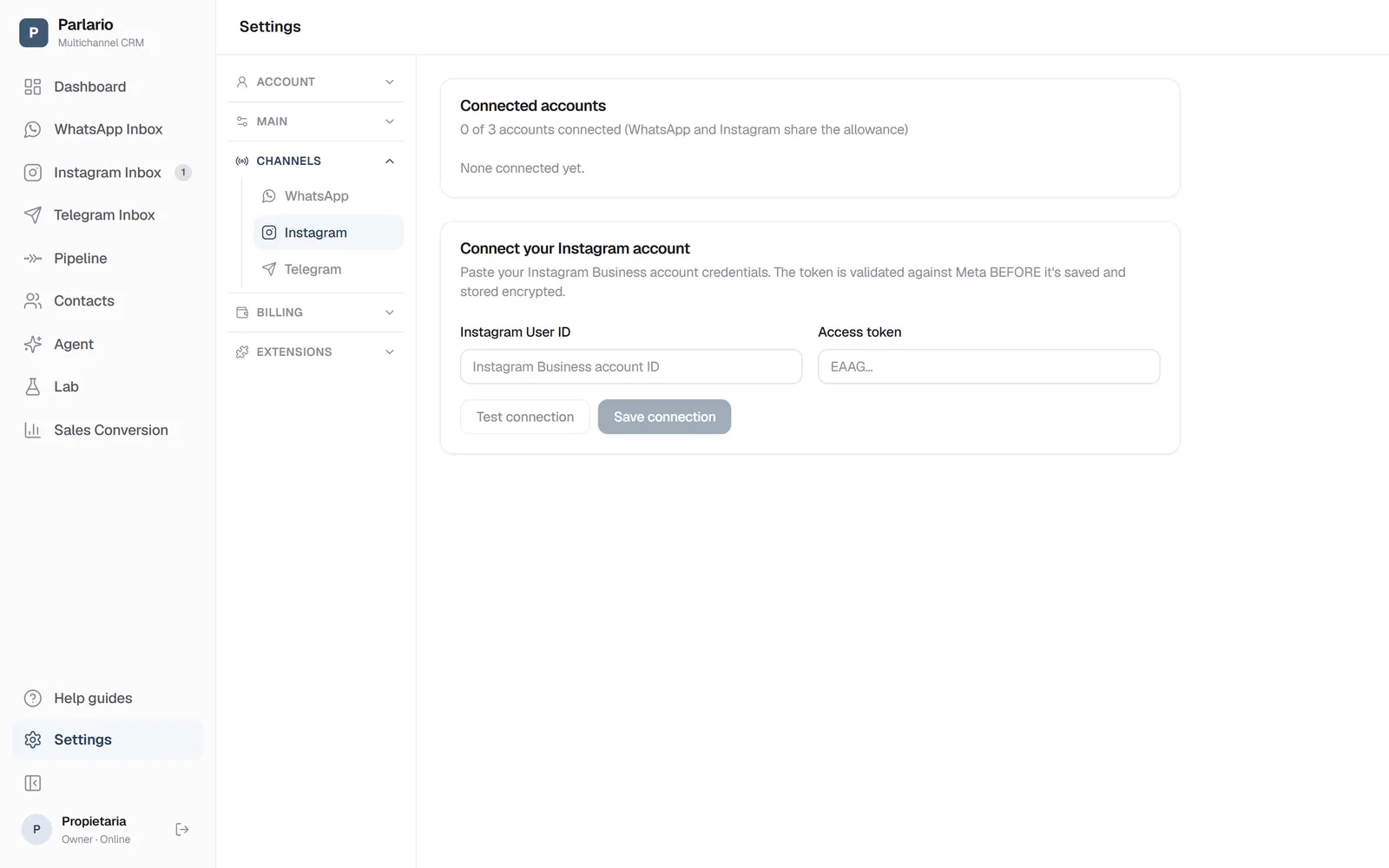
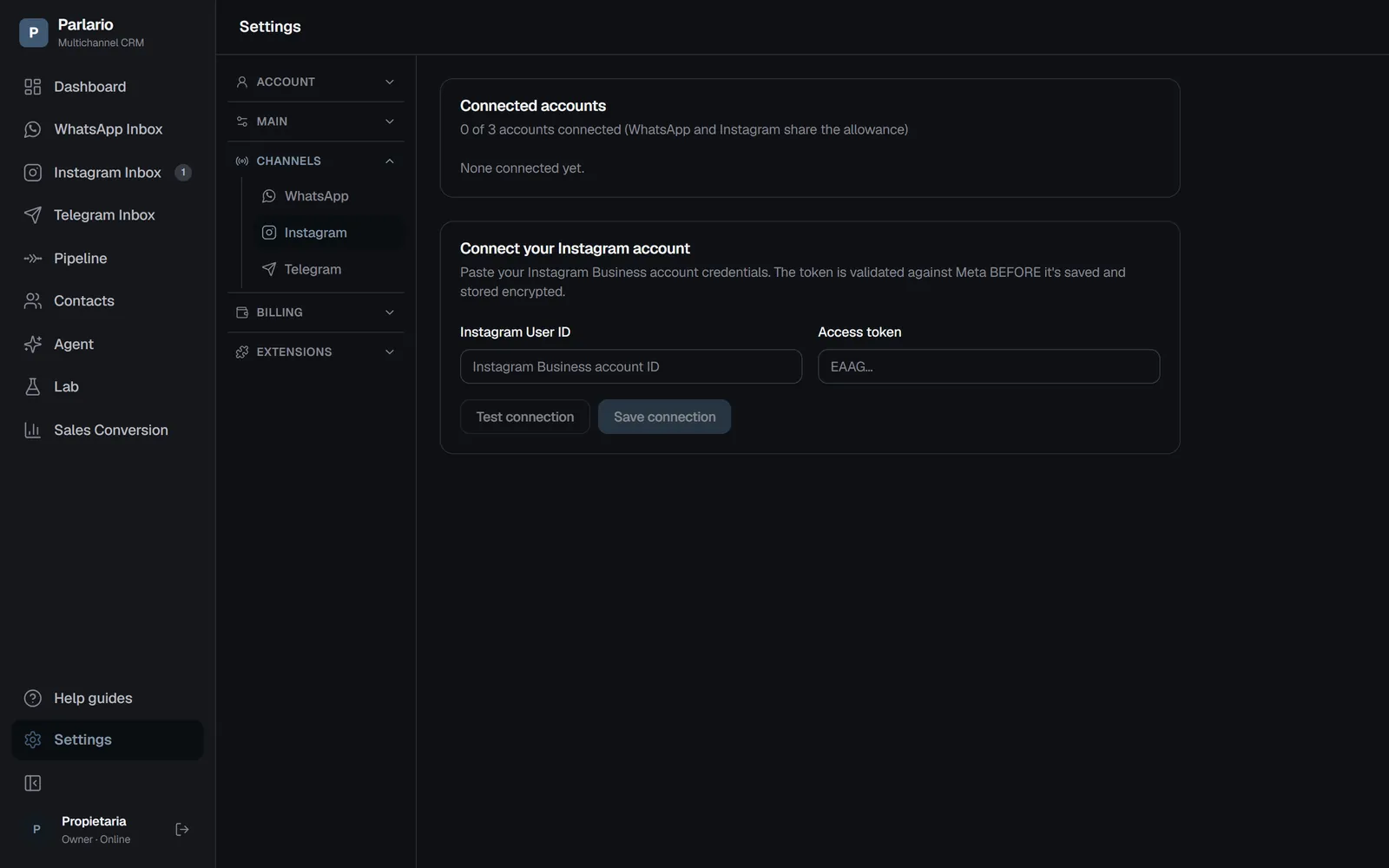
Settings → Channels → Instagram Click 'Connect with Instagram'
A Facebook window opens — log in with your personal Facebook account (the same one that manages the Facebook Page linked to your Instagram).
Confirm the permissions
Facebook will ask you to confirm the permissions Parlario is requesting to manage your Instagram direct messages.
Choose your Instagram Business or Creator account
Your Instagram account needs to be linked to a Facebook Page you manage — if it isn't linked yet, Meta will walk you through that during this step. Tick both: the Facebook Page and its Instagram account. If Meta shows "Edit previous settings", open it and make sure both are ticked — also if you already connected another account before.
Wait for the connection to save
When you're done, the window closes on its own and you're back in Parlario. It can take a few seconds to finish saving the connection.
Confirm it's connected
Settings → Channels → Instagram should now show "Connected" with your account name visible. From here on, direct messages you receive will show up in your Parlario Inbox in real time, in a tab separate from WhatsApp.
If it doesn't connect, or messages don't arrive
Turn on message access in Instagram. In the Instagram app, logged in as your business account: Settings → Messages and story replies → Message controls → Connected tools → Allow access to messages. Without it, Meta doesn't deliver your messages to any tool, Parlario included.
Parlario says Meta didn't let it receive your account's messages. The account wasn't connected. Connect again, accept every permission Meta asks for, and tick the Page and the Instagram account. If it happens again, contact us through support.parlario.co and we'll sort it out with you.
Replies you send from the Instagram app don't show in Parlario. Your customer still gets them, but to keep the whole conversation in one place — and visible to your team — reply from the Parlario Inbox.
More than one Instagram account?
You can connect more than one Instagram account to the same Parlario account with "Connect another account", in Settings → Channels → Instagram. How many depends on your plan: Essential includes 1 Instagram account (plus 1 WhatsApp number and 1 Telegram bot); on Business (3 in total) and Advanced (5 in total), WhatsApp, Instagram and Telegram share the allowance, so each Instagram account takes a slot a WhatsApp number or a Telegram bot could also use. The full details are in Several numbers and accounts.
Exercise
Recap
- Connecting Instagram is entirely optional — it's an extra channel, not a replacement for WhatsApp
- You need an Instagram Business or Creator account, linked to a Facebook Page you manage
- Turn on "Allow access to messages" in Instagram and, when connecting, tick your Facebook Page and your Instagram account
- It uses the same one-click Facebook flow you already used to connect WhatsApp
- Once connected, you'll see a separate 'Instagram Inbox' tab in the Inbox
- If you need to disconnect it, the account owner can do so from Settings → Channels → Instagram
To unmark the lesson, select the button again.
Questions? Visit our support portal: support.parlario.co